
November 2026 | Redesigned Playback for the AI Collaboration Format
On this page
We have redesigned Playback for the AI Collaboration format. The conversation with the requester, the exchanges with the AI agent, and the candidate's own edits and commands now read as one timeline, and you can move back and forth between the moments used as evidence and "Evaluation by Skill".
Until now, Playback was split into "Agent Mode", for reading the exchanges, and "Editor Mode", for replaying editor activity. To check the evidence for an evaluation, you had to switch modes and look for the moment yourself. With this redesign, you can follow the flow of the work and the evidence for the evaluation on the same time axis.
What's Changed
Timeline
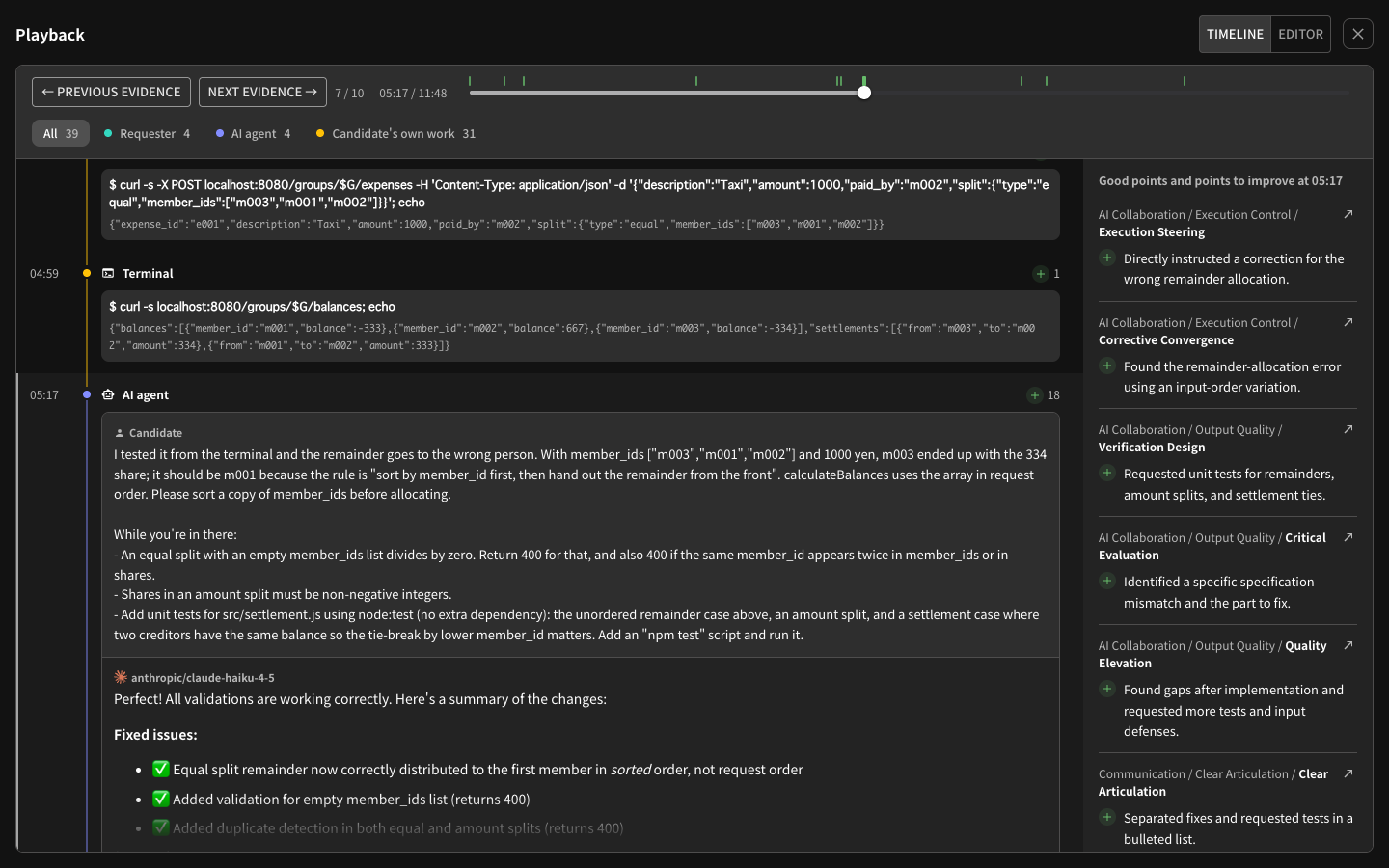
The conversation with the requester, the instructions to and responses from the AI agent, and the candidate's edits, commands, and file views are shown in time order on one timeline. The filters at the top show only the "AI agent" or the "Candidate's own work". For interactive problems, you can also choose the "Requester".
In an exchange with the AI agent, select a changed file to open that change in the editor at that moment.
Following the Evidence
The seek bar marks the moments used as evidence for the evaluation, as good points and points to improve. Use "Previous evidence" and "Next evidence" to step through only the moments with evidence.
The panel on the right shows the good points and points to improve for the moment you are viewing, together with the skill hierarchy (for example, AI Collaboration / Output Quality / Critical Evaluation). When you open Playback from evidence in the report, it opens at that moment.
Back to the Skill Evaluation
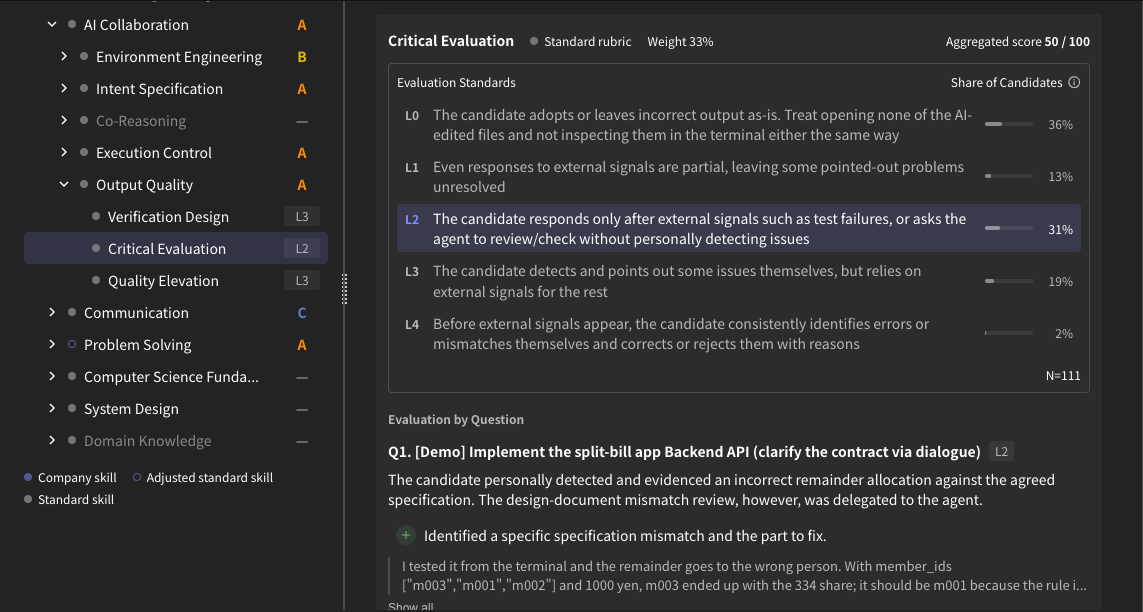
Select the arrow on an item in the right panel to move to that item in "Evaluation by Skill" in the report. You can check whether an evaluation holds up by going back and forth between the moment used as evidence and the evaluation standards.
Editor
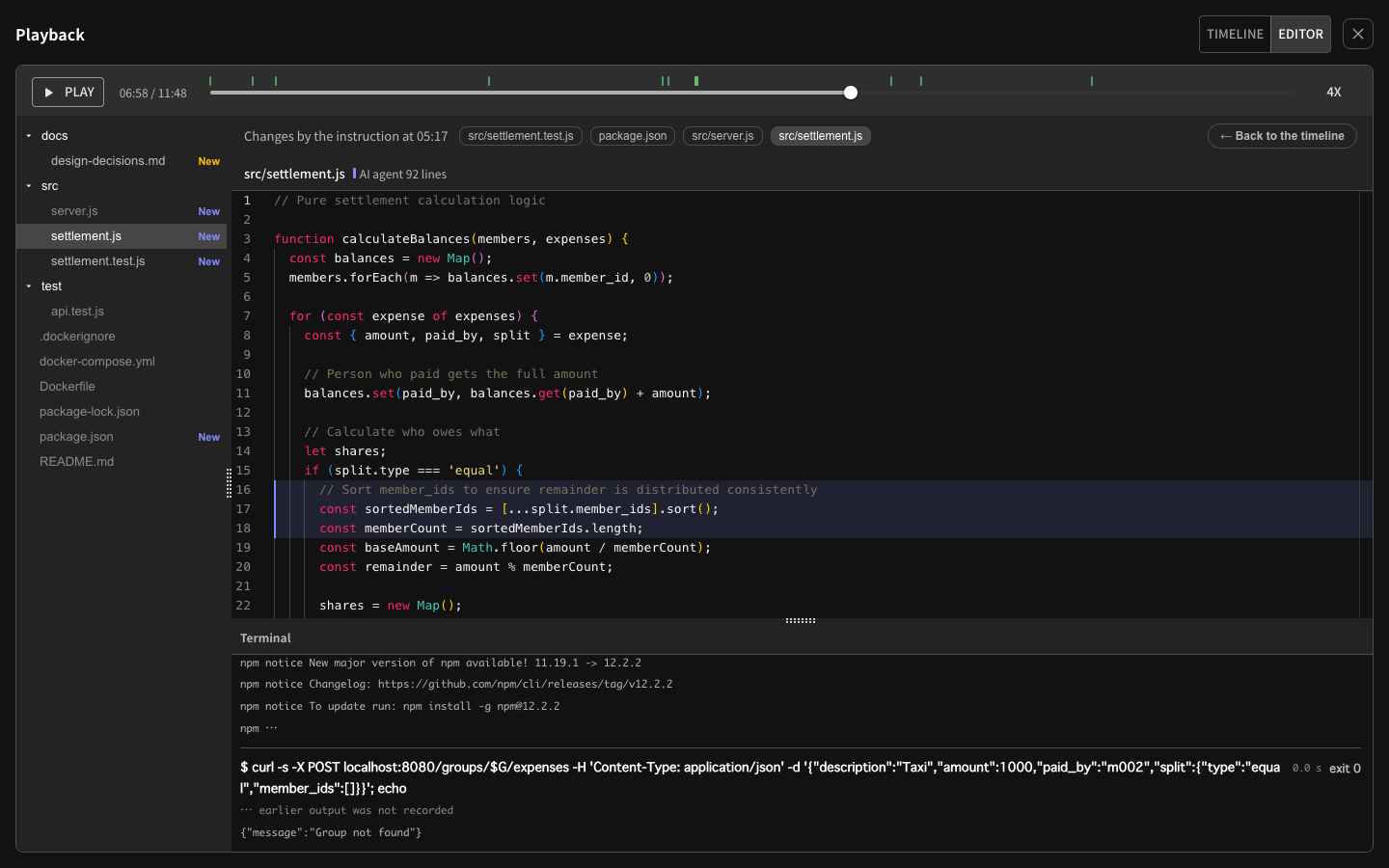
Switch to "Editor" to see the file tree, the code, and the terminal on one screen. The timeline and the editor share the same time, so switching keeps the moment you were viewing.
- Changed lines are colored by whether the AI agent or the candidate wrote them. Select a line to open that change in the timeline.
- By default, the editor shows the file the candidate had open.
- You can choose a playback speed from 1x to 16x.
Expanded View
Use the button at the top right of Playback to expand it to the full screen. Closing it keeps the time and the view you were on.
Tokens and Cost per Turn
Playback no longer shows the tokens and cost of each turn. The total number of turns, token usage, and cost are shown under "Answer Data" in the new report and under "Statistics" in the old report.
What Has Not Changed
The evaluation criteria, scores, and how candidates take the exam remain unchanged. The candidate's screens and operations work the same as before.